“The only real security that a man can have in this world is a reserve of knowledge, experience and ability.” — Henry Ford.
I pair virtual machines with a linux remote desktop habit because I want predictable desktops I can rebuild fast.
Repeatability means the same build every time. Reversibility lets me roll back without risking my daily driver. That calm makes troubleshooting simpler.
I also frame the target machine as the server and the machine I sit at as the client. That view keeps terms clear when I switch between a local VM console and a remote desktop session.
With U.S. work shifting toward more distributed roles, a standard linux remote desktop approach cuts surprises when managing many endpoints. I’ll walk through CLI vs GUI remote access, what I value in remote desktop tools for VM-backed workflows, and a 2026-ready roundup.
Key Takeaways
- Virtual machines give predictable, repeatable desktops for testing and recovery.
- Reversibility reduces risk and speeds troubleshooting.
- I use server/client language to avoid confusion across consoles and sessions.
- I compare SSH-style access to full GUI remote desktop when fitting tasks.
- My bar for performance is “good enough to do real work,” not minimal.
Why I Rely on Virtual Machines for Predictable, Repeatable Work (and Fewer “It Worked Yesterday” Moments)
I rely on virtual machines because they turn unpredictable tweaks into repeatable, low-drama work.
Snapshots and rollbacks are my first safety net. If a configuration change creates issues, I roll back and I’m productive again in minutes. That saves time and keeps troubleshooting focused.
Known-good baselines let me keep desktop and server images consistent. I keep a baseline snapshot for daily desktops and another for server-like VMs. That prevents drift across sessions and avoids odd package or version mismatches.
“When I can reproduce a bug on demand, fixes become tests, not guesses.”
Templates and cloning let me stamp out identical desktops for different users and clients. Moving between laptops or workstations, I get the same application versions and the same experience every time.
- Isolation keeps the host safe while I test new software or risky fixes.
- I reproduce issues inside a VM, demonstrate a fix, then apply it to production with confidence.
- Baseline images stop the common “worked yesterday” pattern: silent updates, dependency drift, or hidden configuration changes.
My Remote Support Linux Workflow for Keeping VM Environments Calm and Consistent
I treat every VM as the single source of truth for a given task, then connect from a dedicated client to do the work.
How I define server vs client:
How I define server vs client in day-to-day sessions
The server is the VM image I will manage. The client is the machine I sit at or a jump box I use to connect.
I choose CLI checks for quick health and logs. I open a full remote desktop when I need to fix GUI apps, settings, or reproduce a user issue.
What “low-stress” quality means to me
Low-stress means responsive input, stable connection behavior, and sessions that keep going through minor Wi‑Fi hiccups.
I reduce lag by selecting the right protocol and tuning compression, color depth, and display size. Smooth interaction beats perfect visuals during a support session.
- Standardization: consistent user accounts, package sets, and clean networking so steps repeat.
- Flexibility: same workflow works on LAN VMs, cloud hosts, or a client machine I’m helping.
- Quality: responsiveness and uptime are my non-negotiables.
“Predictable images and reliable connections make troubleshooting a series of tests, not guesses.”
Remote Desktop Fundamentals I Use: Remote Access, Remote Session Types, and Where SSH Fits
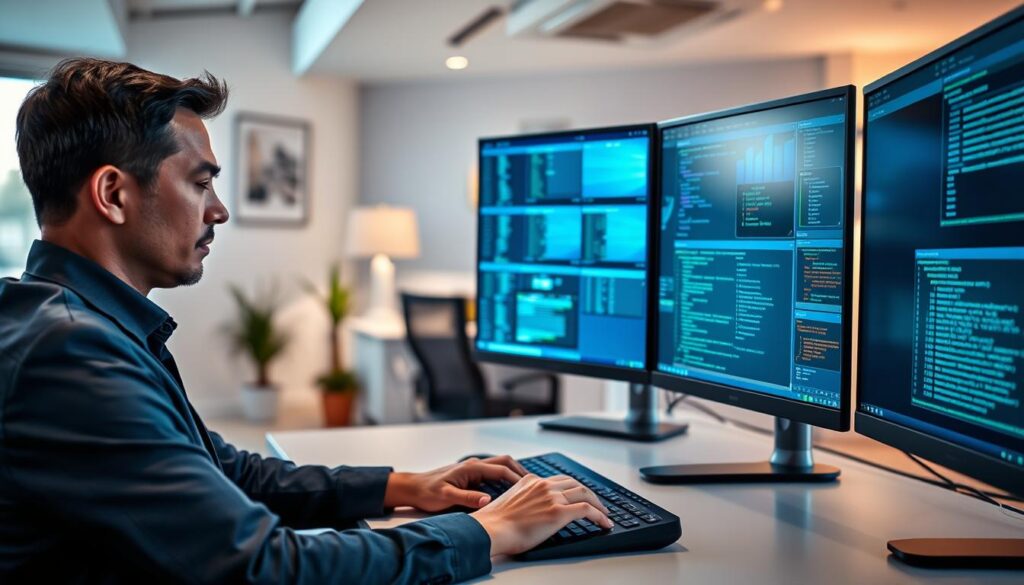
My first touch is almost always a CLI connection; it gets me answers fast. SSH is my go-to for quick checks, scripted fixes, and automation. OpenSSH gives fast, encrypted access between my client and the VM server.
CLI checks with SSH
I use SSH to tail logs, restart services, and run health scripts. A short session often finds the fault before I escalate to a graphical session.
When I open a full desktop session
I switch to a full remote desktop session when I must “sit at the computer” — adjust desktop settings, debug GUI apps, or reproduce user-facing bugs.
X11 forwarding for a single window
X11 forwarding is my lightweight compromise for one application window. It works well on LANs, but over high-latency links the window can feel sluggish.
“CLI for triage, GUI for deep fixes, and X11 when one window is enough.”
- Fast triage: SSH first.
- Full troubleshooting: remote desktop sessions for visual tasks.
- Lightweight tasks: X11 forwarding for single-window work.
What I Look for in Remote Desktop Software to Support VMs (Security, Usability, and Image Quality)
I pick desktop access tools by how well they protect data and how quickly they let me get back to work.
Encryption by default is non-negotiable. I want TLS or SSH tunnels out of the box and sane authentication options. I avoid exposing tcp port 5900 or other screen ports to the internet unless I have a hardened gateway or VPN in place.
Image clarity matters for real work. Text must be sharp, color depth usable, and compression adjustable so I can trade fidelity for responsiveness when lag shows up.
I touch only a few performance knobs in the field: compression level and color depth. If the software lacks those controls, a poor home connection becomes a productivity sink.
Session continuity is critical. I prefer tools that resume sessions or reconnect without losing state. That keeps long-running tasks and complex windows intact when a link drops.
Device realities shape my choice: multiple monitors, high‑DPI scaling, and mixed OS clients must work without relearning an interface. When buttons and features hide behind clutter, support slows and the client experience suffers.
“Encryption, tunable quality, and session resume separate usable tools from nice-to-have ones.”
| Tool | TLS / Encryption | Adaptive Quality & Resume | Notes |
|---|---|---|---|
| Remmina | Optional (depends on backend) | On-the-fly tuning; good for varied links | Protocol flexibility; useful for many clients |
| TigerVNC | TLS-by-default (preferred) | Limited adaptive options; solid performance | Strong image quality; accept manual tuning |
| RealVNC | TLS available; modern auth | Adaptive quality and some session resume | Good file transfer and Windows device handling |
My Product Roundup Criteria: How I Evaluate Remote Desktop Solutions for Real Work in 2026
When I evaluate tools, I focus on how quickly real users and clients can get started without my help.
Setup time and onboarding friction win or lose a product quickly. Low-friction means minimal installs, simple authentication, and no lengthy firewall choreography. If a client needs 20 minutes of coaching, the tool fails my practical test.
Setup time and onboarding
I prefer solutions that offer a quick install path or a web-based session link. That reduces lost time and increases adoption.
File movement and transfer needs
Built-in file transfer saves hours. If a tool forces me into email attachments or cloud links, I count that as extra work time.
One-to-one vs multi-session models
I separate single-session help tools from multi-user server models. One fits ad hoc fixes; the other fits labs and shared server use.
- Map to VM scenarios: lab VMs, client VMs, and shared server desktops.
- Flexibility: protocol support and how well it plays with mixed devices.
- Feature fit: onboarding speed, file moves, and session types.
| Criteria | What I test | Why it matters |
|---|---|---|
| Onboarding time | Install steps, web link, auth flow | Shorter time means higher client adoption |
| File transfer | Drag-drop, clipboard, built-in transfer | Reduces workarounds and lost time |
| Session model | One-to-one vs many sessions on a server | Determines tool fit for labs or individual help |
| Flexibility | Protocols, clients, resume behavior | Works across devices and varied server setups |
“The faster I can onboard users and move files, the less time I waste fixing the tool instead of the problem.”
HelpWire for Remote Support: How I Use It for Fast, Low-Friction Sessions Across Windows, macOS, and Linux
HelpWire sits in my toolkit for quick fixes and predictable maintenance. It starts with a single install link, so clients run a small module and we launch a live remote desktop session without hunting for IDs or opening firewall ports.
Swift ad hoc sessions
I share the install link and the client runs the app. In minutes we have a session open and I can view the user’s desktop.
Unattended access and maintenance
Unattended access lets me patch images and run updates after hours. That reduces disruption and keeps VM maintenance predictable.
Drag-and-drop file transfers
Transferring files is simple: I drop installers or logs into the session window and they appear on the client machine. That saves time over email or cloud uploads.
Multi-monitor handling and client management
Multi-monitor switching and layout options mean I see exactly what users see. Web accounts let me manage clients centrally and add operators without extra cost.
“Consistent, low-friction access and solid file handling turn support into a task, not a project.”
| Feature | How I use it | Benefit |
|---|---|---|
| Ad hoc install link | Share link, client runs module | Fast sessions without IDs or VPN |
| Unattended access | Scheduled patches and after-hours fixes | Less downtime, predictable maintenance |
| Drag-and-drop files | Push files into session window | Faster file moves, fewer steps |
| Multi-monitor support | Switch layouts, scale displays | See user view across displays |
| Web account management | Central client list, free added operators | Scale without operator cost |
Why I trust ratings: consistent 5.0 scores on G2, Capterra, SourceForge, and TrustRadius lower my adoption risk when standardizing software for many users.
Linux Remote Desktop Servers for Virtual Desktops: When I Want True Multi-User Sessions
When many people must run full desktops from the same infrastructure, a server-grade approach stops ad hoc workarounds and keeps sessions stable.
I reach for a dedicated linux remote desktop server when I need separate, persistent desktops for multiple users. ThinLinc is my benchmark because it delivers strong security, consistent image quality, and good responsiveness across variable links.
What ThinLinc brings under the hood
ThinLinc packages and orchestrates TigerVNC, noVNC, OpenSSH, and PulseAudio. That mix explains why it handles encrypted connections, audio, and both native and browser access.
Why session resume and HA matter
Session resume changes operations. When a user disconnects, they reconnect to the same desktop state. That avoids rebuilding work and reduces incident pressure.
High availability patterns I use include redundancy and load balancing across servers to avoid maintenance downtime. That keeps users productive during updates and failures.
Where ThinLinc is not the right fit
ThinLinc is not built for interactive help on a user’s live screen. For that, I pick tools meant for one-to-one assistance.
Practical limits I watch: snap-packaged apps can misbehave in remote sessions, and high frame-rate or Vulkan-heavy applications may skip frames or fail to render correctly.
“For multi-user virtual desktops, a server that resumes sessions and scales with redundancy is the difference between chaos and calm.”
- Scale: many users, isolated sessions on shared hardware.
- Visibility: predictable image quality and encrypted connections.
- Operational: resumeable sessions plus load balancing cuts downtime.
VNC-Based Remote Desktop Clients I Actually Use (and Why the Client Matters)
The client software shapes how quickly I get from “can you see my screen?” to a fix. A good remote desktop client gives clear tuning, fast files, and predictable clipboard behavior.
RealVNC Connect
RealVNC Connect is my pick when file transfer and graphical work matter, especially on Raspberry Pi gear. TechRadar notes its file features are strong, though setup can feel complex.
I reach for RealVNC when I need reliable files and crisp image quality for GUI apps.
Remmina
Remmina is my Swiss Army knife. It handles VNC, RDP, SSH, and NX, and I can tune quality on the fly when the connection varies.
It lacks some extras but wins on protocol flexibility and quick performance tweaks.
TigerVNC
TigerVNC gives a clean interface and solid speed. Its TLS-by-default posture matters to me, though I watch server identity and X509Vnc settings for full verification.
When I need steady quality and a no-nonsense client, TigerVNC is my go-to.
TightVNC
TightVNC fits Windows-heavy cases where familiarity helps. Be realistic: multimedia and fast-moving visuals can be painful with this client.
I use it when the environment is Windows and simple screen sharing is enough.
“The client UI, tuning controls, and session handling determine whether work feels smooth or frustrating.”
- Why the client matters: interface, tuning, and session resume speed up fixes.
- Practical limits: screen scaling and clipboard quirks shape how fast I move files and complete tasks.
- My rule: pick the client that matches the task—files, graphics, or quick CLI bridging.
Alternatives I Keep in My Toolkit: RDP/XRDP, X2Go, and “Screen Mirroring” Support Apps
I keep a small set of alternate access paths so I can match the tool to the problem fast. Different client constraints, security policies, and urgent “I need in now” cases mean one option rarely fits all.
RDP and Windows limitations
RDP is the native choice for Windows desktops. It gives good performance and wide client support.
Note: Windows Pro allows only one interactive user at a time. That single-user limit affects how I schedule work so I don’t kick someone off an active session.
I also avoid exposing the default RDP port directly to the internet; it’s a common target and needs gateways or VPNs for safe access.
XRDP as an RDP bridge into a desktop session
When I need an RDP-like path into a non-Windows desktop, XRDP is my bridge. It lets Windows-first tools connect to a desktop session on a server and keeps workflows consistent.
X2Go for resumable sessions and audio
X2Go runs over SSH and gives resumable sessions plus audio. It’s free and fast for many tasks.
Compatibility can bite: some desktop environments and accelerated applications behave oddly. I test images before I rely on X2Go for production work.
Screen-mirroring apps for live, interactive help
AnyDesk and TeamViewer-style apps mirror the local screen so I can see exactly what people see at home. They’re ideal for one-to-one interactive help, not for multi-session server desktops.
“Different tools solve different problems—pick the one that matches the client, the server, and the issue at hand.”
- Why I keep alternatives: client limits, security rules, and urgent fixes demand choices.
- Common issues I plan for: app acceleration limits, session interruptions, and clipboard quirks.
- Security rule: never casually expose a connect server port without proper hardening or a gateway.
Conclusion
Virtual machines give me consistent desktops, and the right remote desktop approach stops tool setup from turning a small issue into a major interruption.
I choose a multi-user server when many people need persistent sessions, and I pick one-to-one tools for live help on a user’s computer. That makes scaling predictable and fixes quick.
My buying checklist: security posture, image quality, session continuity, and a clear interface that speeds work. For file moves I use a client with built-in transfer. For varied networks I favor flexible protocol support.
Treat configuration and exposure seriously: basic hardening prevents most access issues. Pick one primary tool, document the workflow on an internal website, and keep a short troubleshooting runbook to save time when problems occur.
FAQ
How do virtual machines make my work predictable and low-stress?
I use snapshots and templates so I can roll back mistakes and clone standardized desktops. That means I reproduce environments quickly, avoid configuration drift, and stop chasing “it worked yesterday” problems.
What role do snapshots and rollbacks play in my workflow?
I rely on snapshots as an instant safety net. If an update or test fails, I revert in minutes instead of hours, which keeps clients and servers available and reduces downtime.
How do templates and cloning help when I manage many desktops and clients?
I create golden images with preinstalled tools and policies, then clone them for new users or devices. This cuts setup time, enforces consistency, and simplifies troubleshooting across teams.
Why is isolation important when I test software or risky fixes?
Isolation prevents a bad change from affecting other users or services. I run experiments in separate VM instances so I can validate changes without risking production servers or client data.
How do I define “server” versus “client” in my day-to-day sessions?
I treat a server as a multi-user or back-end host that provides services; a client is a user-facing desktop or device I connect to for troubleshooting. That distinction guides whether I use SSH, graphical sessions, or console tools.
What metrics do I use to judge “low-stress” quality?
I measure responsiveness, uptime, and predictability. If sessions are responsive, images remain consistent, and surprises are rare, I consider the environment low-stress and production-ready.
When do I choose CLI access with SSH over a GUI session?
I use SSH for quick checks, automation, and secure file operations. It’s the fastest path for logs, service restarts, and scripted fixes without the overhead of a full desktop session.
When do I open a full graphical desktop session instead?
I start a GUI session when I need to reproduce a user workflow, test visual issues, or use apps that require a display. It’s essential for true “sit at the computer” troubleshooting.
How and when do I use X11 forwarding over SSH?
I use X11 forwarding when I need a single graphical app from a remote host. It’s handy but can be slower and less secure than native protocols, so I reserve it for light use and diagnostics.
What security features must remote desktop software include for VM environments?
I expect strong encryption, authentication, and port hardening. I never expose access ports without firewall rules and tunneling, and I prefer solutions that support MFA and role-based accounts.
How do I tune performance for image quality and lag reduction?
I adjust compression, color depth, and frame rates based on network conditions. Lower color depth and better compression reduce lag; adaptive codecs help when bandwidth fluctuates.
What do I look for in session continuity and reconnect behavior?
I need reconnects that preserve sessions and open files. Tools that keep my place after a network hiccup save time and prevent lost work during long troubleshooting tasks.
How do I handle multi-monitor and mixed-OS client setups?
I choose software that supports multiple displays, scaling, and cross-OS compatibility. That makes it practical to support Windows, macOS, and other desktops from a single console.
What setup time and onboarding friction matters when evaluating tools?
I prefer solutions that install quickly and require minimal client action. Lower onboarding friction means clients accept help faster and I spend less time on configuration tasks.
How important is built-in file transfer versus workarounds?
Built-in transfer saves time and reduces errors. When a tool lacks it, I resort to SCP, shared cloud links, or mounting drives, which adds steps and increases complexity.
How do I decide between one-to-one and multi-session support needs?
For individual troubleshooting, one-to-one sessions work best. For training, labs, or multi-user desktops, I prefer multi-session or virtual desktop infrastructure that supports concurrent users.
Why do I use HelpWire for ad hoc and unattended sessions?
HelpWire lets me start ad hoc sessions via a link and set unattended access for maintenance. That reduces friction for clients and gives me scheduled windows to apply updates without interruptions.
How do I transfer files during a HelpWire session?
I drag and drop files into the session window or use the built-in transfer feature. It’s faster than separate sharing tools and keeps context within the troubleshooting session.
How does multi-monitor support improve my workflow with HelpWire?
Multi-monitor support lets me mirror complex setups or move between displays seamlessly. It’s essential for diagnosing layout issues and reproducing user workflows accurately.
How do web accounts and centralized management scale my client operations?
I manage clients and sessions through web accounts, which centralize access, permissions, and billing. That lowers operator cost and simplifies onboarding of additional technicians.
Why do I consider third-party ratings when choosing software?
I check G2, Capterra, and TrustRadius to validate real-world reliability and user experience. High ratings and detailed reviews help me trust a vendor before I roll it out across clients.
When do I choose ThinLinc for virtual desktops?
I pick ThinLinc when I need secure, multi-user virtual desktops with good image quality and responsiveness. It fits well for organizations that require centrally managed desktop images and sessions.
What components does ThinLinc use under the hood?
ThinLinc integrates TigerVNC, noVNC, OpenSSH, and PulseAudio to deliver graphical sessions, web access, secure connectivity, and audio forwarding in a unified stack.
How do I design for high availability with virtual desktop servers?
I use redundancy, load balancing, and maintenance windows to avoid downtime. Automated failover and replicated images keep user sessions available during patching or hardware issues.
Where does ThinLinc fall short for my tasks?
It’s less suited for interactive, high-frame-rate apps like video editing or gaming. For quick one-off remote assistance, lighter ad hoc tools can be faster and more convenient.
Which VNC clients do I choose for different jobs?
I use RealVNC Connect when I need file transfer and broad device support, Remmina for flexible protocols and tuning, TigerVNC for performance with TLS defaults, and TightVNC for basic Windows-heavy cases.
When is RDP or XRDP the better choice?
I prefer RDP for native Windows desktops and use XRDP when I need an RDP-like path into a Linux desktop. Each offers better integration with their respective OS ecosystems.
What advantages does X2Go offer over other options?
X2Go runs over SSH, supports audio, and offers resumable sessions, which I value for persistent connections. Compatibility limits with some desktop environments can be a drawback.
Why keep AnyDesk or TeamViewer in my toolkit?
I use them for fast interactive help on a local user’s screen when I need immediate access without setting up multi-user infrastructure. They’re practical for ad hoc troubleshooting.
How do I choose between all these tools for real-world tasks?
I match the tool to the job: CLI and SSH for scripts and fast fixes, GUI sessions for visual issues, VNC and RDP variants for virtual desktops, and ad hoc tools for quick user help. That mix keeps my workflows efficient and predictable.