I learned early that one odd metric matters: in my lab I kept an Ubuntu test install running for 1,095 days before a forced reboot. That span showed me the value of predictability when an operating system must simply keep working.
My path was gradual — Ubuntu in a lab, a few Wubi tests, dual-booting, then VMs, and finally daily use. I framed this as switching to linux slowly because I had deadlines and could not risk a flaky setup.
This guide compares RHEL, Debian, and Ubuntu through the lens of long-term stability and real-world support. RHEL bets on enterprise predictability and paid support. Debian favors conservative reliability. Ubuntu aims for a practical middle ground for desktop linux users.
Along the way I dealt with gaming gaps, codec quirks, and video calling that had to be rock solid. Hardware detection was often great on Ubuntu, but Wi‑Fi chips and scanners sometimes needed work. Kernel upgrades were the usual cause of reboots.
Key Takeaways
- I value stability over novelty when I need a system that just works for many days.
- RHEL offers predictable enterprise support; Debian is conservative; Ubuntu balances convenience for desktop use.
- Test with live images or dual-boot before replacing Windows on critical machines.
- Expect kernel-driven reboots; verify video calls, Wi‑Fi, and peripherals early.
- Support can be paid SLAs or community help—plan which fits your needs.
Why I cared about long-term stability before leaving Windows
Before I left Windows, stability became my top non-negotiable. My motivation was never that an alternative OS looked cool. I needed a machine that would not fail when deadlines arrived.
I first saw that in a 2012 computer science lab running Ubuntu images. The lab had Python, Vim, and a UNIX shell already set up. That baseline let me focus on work, not setup.
Early exposure and workflow
That early setup shaped how I used my computer for years. I built data pipelines in Python and SQL, did analysis in Python and R, and used Vim keybindings everywhere.
The reality check
I still needed Windows sometimes. Games, media quirks, peripherals, and Microsoft Office compatibility pulled me back on occasion. Pretending those needs did not exist wastes days and time.
- Motivation: I could not afford downtime for school or work.
- Friction: gaming, codecs, hardware, and Office files.
- Takeaway: distro choice matters because release cadence and support model change how often you face disruption.
| Issue | Impact | Workaround |
|---|---|---|
| Games | Boot into Windows for play | Dual-boot or wait for better drivers |
| Office files | Formatting risks | Keep Windows or use cloud Office |
| Peripherals (Wi‑Fi, scanners) | Unreliable on some days | Test live images before full install |
What “stability” and “support” actually mean in an operating system
For me, stability is about how many uninterrupted days my system stays usable. It is a practical metric: do updates introduce breaking changes, how often I must reboot, and whether my workflow stays predictable over long days.
Security patches vs new features vs breaking changes
Security patches are non-negotiable; they fix vulnerabilities fast and keep the operating system safe. New features are nice, but they can bring regressions.
Breaking changes are the real risk for daily use. I avoid distros that push disruptive updates during work days.
Release cadence and update windows
Release cadence affects predictability. Fast-moving operating systems deliver features quickly but raise the chance an update collides with a driver or a key app.
I plan update windows so I can apply upgrades on low-risk days and avoid debugging during important meetings.
Enterprise support channels vs community support
Paid vendor support gives SLAs, ticket tracking, and certified stacks for business-critical systems. Community support often solves common problems fast through forums and docs when I can test fixes over spare days.
My rule for switching to linux slowly without losing productivity
I never attempt a serious migration without a backup computer or a reliable fallback plan. A failed update at the wrong moment can derail a week of work.
Why I always keep a backup computer or fallback plan
Don’t try this without a safety net: early experiments broke apps and drivers. I kept a secondary machine for emergencies and a separate gaming desktop so I only booted into Windows when I really needed it.
How I decide what must work on day one
I make a short checklist of must-haves before I make Linux the default on my main computer.
- Wi‑Fi and stable networking
- Audio input/output and conferencing tools
- Browser profiles, password manager, and VPN
- External displays, printing/scanning if required
Slow switching is deliberate: I swap one piece software at a time and keep Windows available for the one task I can’t move yet.
| Fallback option | Cost | When I use it |
|---|---|---|
| Separate machine | Higher | Daily work + emergencies |
| Separate drive / dual-boot | Moderate | When budget limited but need Windows access |
| Cloud or remote Windows | Low to moderate | Rare tasks I can’t run locally |
Low-risk ways I tested Linux before committing
My first goal was to validate hardware and applications without changing the drive on my main machine. I used a staged approach that caught most deal-breakers in hours, not days.
Live images: quick hardware checks
I booted live USB images to confirm Wi‑Fi, Bluetooth, audio, external monitors, and suspend/resume. This left the drive untouched and let me test peripherals fast.
Why do this first? It finds hardware mismatches before any install and keeps your default system safe.
Virtual machines: Linux inside Windows for development
Next I used VMs as a bridge for “linux windows” workflows. An Ubuntu Hyper‑V image let me run development tools and applications while staying inside my locked-down Windows host.
Note: a Windows update once broke Hyper‑V networking on my desktop. VMs are great for learning, but network quirks can appear.
Dual-boot: only when truly needed
I reserved dual-boot for cases where a Windows-only app or hardware workflow was unavoidable. I kept partitions simple, documented boot recovery steps, and accepted occasional reboots.
| Method | Risk to drive | Test scope | Best when |
|---|---|---|---|
| Live USB | None | Hardware, peripherals | Fast validation before install |
| Virtual machine | None (host preserved) | Applications, dev tools, network | Develop inside Windows safely |
| Dual-boot | Partition changes | Full performance, Windows apps | When Windows is still required |
Red Hat (RHEL) in plain English: stability-first and support-first
If you value a machine that behaves the same after hundreds of days, RHEL was built for that problem. It is an operating system tuned for predictability, certification, and long-term maintenance rather than chasing new features.

Who RHEL is built for and what desktop users feel
RHEL targets enterprises that pay for SLAs and certified stacks. As a desktop user, that means packages can look older, but updates arrive in a careful, tested cadence.
Why slower change is often a feature
Support-first means if something breaks you have a contractual path, not just forum guesses. The trade-off is fewer flashy desktop features and slower tool refreshes.
- Predictable updates: fewer surprises during workdays.
- Vendor backing: paid support and clear escalation routes.
- When it misfits: expect extra work for bleeding-edge GPU or newest desktop environments.
| Characteristic | What I experience | Desktop impact |
|---|---|---|
| Update cadence | Conservative | Fewer reboots, stable days |
| Support model | Paid SLAs | Contractual fixes |
| Packages | Older, vetted | Less novelty, more predictability |
Debian’s approach: conservative by design for long time reliability
For systems that must keep running through long stretches, Debian often becomes the obvious choice. Its release policy favors tested code rather than the newest features. That philosophy means a system will often go weeks and days without surprises.
Why it just keeps running: Debian uses conservative packages and long testing cycles. Once I set it up, daily life felt quieter. I focused on work, not frequent updates.
Why many users call it the “it just keeps running” distro
Reliability matters when I still need windows occasionally. Debian’s slow cadence reduces unexpected reboots and regressions. Community support fills gaps without forcing rapid changes.
Trade-offs with newer hardware and applications
New Wi‑Fi chips, GPUs, and some scanners can be edge cases. If hardware refuses to behave, trying a different distro with a newer kernel can fix the issue.
Workarounds: backports, flatpaks, or containers let me run fresh applications while keeping Debian’s stability.
Where Debian fits when I want years of consistency
Debian is my community-driven stability anchor. If I want minimal churn for years and predictable maintenance, it is the distro I trust most.
Ubuntu’s approach: a practical middle ground for desktop Linux
For day-to-day productivity I reached for Ubuntu because it balanced modern tools with predictable upkeep. It often feels like the fastest route from a Windows workflow to a reliable desktop. I could get productive in a few days without deep tweaking.
Why Ubuntu can feel easier coming from Windows
Ubuntu mirrors familiar desktop workflows and ships many GUI installers. That helped me move essential apps and keep a Windows fallback for specific tasks.
Hardware detection and driver support expectations
Ubuntu usually finds printers, GPUs, and common wireless chips quickly. I still hit edge cases with some scanners and niche Wi‑Fi modules, but those were the exception.
Where Ubuntu’s community helps me solve problems faster
Community forums, blogs, and tutorials made fixes searchable. When an update broke something one morning, I found a step-by-step solution within hours.
- Practical: easy installs and GUI drivers for most users.
- Predictable: updates that feel less disruptive over long days.
- Support: large community and documentation for common problems.
How the update model differs across Red Hat vs Debian vs Ubuntu
Updates are the daily rhythm that decides whether a machine feels dependable or fragile. I compare how each family delivers patches, how often I see changes, and how much disruption I should expect over weeks and days.
What to expect from default update tools and workflows
RHEL uses managed repos and vendor tools that favor tested, slower rollouts. Debian relies on apt with conservative packages and optional backports. Ubuntu ships GUI updaters and a mix of apt and snaps that arrive more frequently.
When updates force a reboot and when they don’t
Most security and app patches do not need a restart. Kernel upgrades are the common reboot trigger, so I plan those in low-risk windows to avoid unexpected downtime.
How I plan updates around my workday and my network
I schedule routine patches during evenings and hold major upgrades for days when I can recover. On limited bandwidth or travel, I defer big downloads until I have a stable network at home or the office.
- I treat RHEL as predictable and slow, ideal for long running systems.
- Debian gives fewer surprises and a steady pace for months and years.
- Ubuntu delivers smaller changes more often; that can be easier if I keep to a regular update habit.
| Aspect | RHEL | Debian | Ubuntu |
|---|---|---|---|
| Update pace | Conservative | Conservative | Frequent |
| Default tools | Vendor tooling | apt | apt + GUI |
| Disruption | Low | Low | Moderate |
Practical mindset: treat updates as routine maintenance. Smaller, regular patches beat rare, massive upgrades. That habit kept my work steady when I used both windows and Linux systems.
Choosing based on the support you really need
Support choices shape how many nights I stay calm when an update hits. Pick the help model that matches your risk, budget, and how many days you can afford downtime.
Paid support and SLAs — when they matter
Paid support buys accountability. If your computer brings revenue or must meet compliance, a vendor contract gives escalation paths and a clear timeline for resolving an issue.
I count paid help when outages cost billable days. Certified stacks and vendor testing reduce surprises. For some users, that is the single reason to pay.
Community forums, documentation, and fast fixes
Community help is fast and searchable. For home users and many prosumers, clear documentation and active forums solve most problems within hours or days.
I evaluate community quality by recent thread volume, clarity of guides, and whether fixes match my hardware and software versions. Linux problems often have multiple valid solutions; I pick the least invasive way that is easy to revert.
- I recommend paid SLAs when downtime directly hurts revenue or compliance.
- Use community help when you value speed, breadth of answers, and lower cost.
- During migration I lean on community; after settling, predictable vendor maintenance can make sense.
| Model | Best for | What it buys |
|---|---|---|
| RHEL (paid) | Enterprise users | SLAs, certified compatibility, accountability |
| Debian (community) | Conservative home/prosumer users | Stability, community docs, low churn |
| Ubuntu (large community) | Desktop users who want ease | Fast Google-able fixes, broad hardware tips, active forums |
Hardware compatibility: what I test first on a laptop and desktop
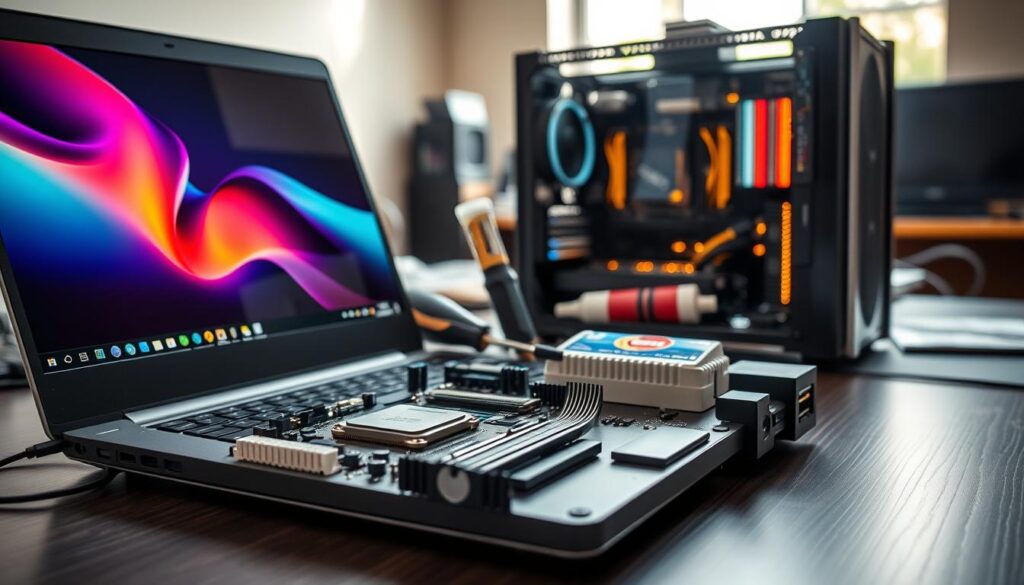
Hardware checks decide whether an install is a weekend project or a daily driver. I run a short, strict checklist on any laptop or desktop before I get comfortable using the computer every day.
I test network and audio first: Wi‑Fi, wired networking, Bluetooth, and speakers or headphones. Next I try external displays and then suspend/resume. These things reveal most problems within minutes, not days.
Wi‑Fi chips, scanners, and repeat offenders
Wireless chipsets and scanners are my usual culprits. A bad Wi‑Fi driver breaks everything immediately. Scanners often need proprietary firmware or a newer kernel to behave.
If either fails, I note exact chip and model, then try a live image or a distro with a newer kernel. That step fixes many issues fast.
Webcam, sleep, and hibernate reliability
Webcam and microphone quality are not optional for remote work. I check video calls, mic levels, and encoding during a short test call.
Suspend and hibernate matter more on a laptop. Inconsistent suspend made me shut down instead of trusting sleep. If suspend fails, the laptop becomes unreliable for daily mobility.
Battery life trade-offs I’ve seen under Linux
Battery life can vary. I saw ~20% worse battery on a Framework laptop compared with the vendor OS. That difference shaped my choice of distro and kernel tweaks.
When switching distros fixes a hardware issue
Sometimes a distro change fixes hardware because newer kernels or different defaults include upstream drivers. Fedora and other bleeding‑edge releases often resolve fresh hardware problems.
My goal is low-surprise computing for months and days, not just a successful install on day one. Testing hardware first kept my long-term setups far more dependable than chasing themes or apps.
Apps and workflows: how I replaced Windows tools over time
My app migration followed a simple rule: change one tool, use it for days, then decide. That kept my work moving while I evaluated replacements and avoided a risky weekend overhaul.
Office files and the Microsoft Office sometimes problem
I needed perfect fidelity for some documents. Web Office apps like Google Docs and Microsoft 365 web helped for most tasks.
When fidelity mattered, I kept a Windows install available. For many files I disciplined formats and used the web versions for editing.
Image editing and diagrams with native tools
There is no native Photoshop on my desktop, but GIMP and Krita handled light edits well. For vector diagrams I used Inkscape.
These applications let me avoid frequent installs of one-off exotic tools and reduced the number of system changes over weeks and days.
Why the browser became my default app platform
The browser absorbed more of my workflow. Web apps replaced many pieces of software and removed OS lock-in.
Practical rule: pick one critical task, choose one tool, run it for a week, then decide. Fewer exotic tweaks meant fewer surprises and steadier long-term stability for my operating system.
Gaming, media, and codecs: the practical blockers I had to solve
Gaming was the single feature that repeatedly pushed me back onto Windows. Rebooting, waiting for updates, and juggling drivers made gaming the clearest reason I delayed a full move.
What changed during the COVID years was dramatic. Pop!_OS, Proton on Steam, and improved drivers made many titles playable on my system. Offline games with an AMD GPU often ran with minimal performance loss.
Why I used Windows for games
I used Windows when DRM, vendor tools, or anti-cheat systems blocked play. Competitive online titles often failed because anti-cheat did not support alternative kernels or user namespaces.
What modern support fixed
Proton and vendor tooling covered a surprising share of my library. Many single-player titles and older releases worked well. That gave me confidence on non-Windows days.
The online anti-cheat split
Offline and single-player games usually “just work.” Online competitive play remains hit-or-miss. If your favorite title uses kernel-level anti-cheat, you may still need a Windows partition for those sessions.
Streaming and media playback realities
Game streaming from a gaming desktop to a laptop cut down my reboots and reduced the need for Windows daily. Streaming made couch-play practical and saved me time.
Media playback improved too. Netflix and most streaming sites worked after some codec installs. HDR, however, stayed limited on many setups and kept me tethered to Windows for a few viewing cases.
Practical takeaway: if you want a set-it-and-forget system for years, pick a stable distro and add gaming layers carefully. For now, I treat some competitive online titles as a valid reason to keep a Windows fallback rather than force a risky day-one migration.
- Keep a Windows partition if anti-cheat blocks your core games.
- Try Proton and Pop!_OS for single-player libraries first.
- Use streaming to reduce reboots and preserve stability during busy days.
Remote work and video calls: my make-or-break reliability test
Video calls forced a final truth: if my laptop can’t handle one meeting, it can’t be my main work machine. I treated remote calls as the real exam for any new desktop setup.
Webcam, microphone, encoding, and why it used to be painful
Everything must work at once: camera detection, microphone input, audio routing, video encoding/decoding, and a stable network. If one piece fails, the call degrades or drops.
I had days when the webcam was invisible, or suspend broke the mic. Those issues cost time and left me juggling between windows and my fallback device.
The moment everything worked and I stopped hesitating
My turning point came on an urgent executive call. I plugged a USB webcam into my laptop, opened the conferencing app, enabled the mic, and it simply worked. No fiddling. No reboot. That single success proved the system could handle real work under pressure.
Practical test plan:
- Open a camera app and confirm video before a meeting.
- Verify browser permissions and the conferencing app simultaneously.
- Check audio routing: headset, speakers, and mic levels.
- Run a short test call with recording or screen share.
If your livelihood depends on calls, pick the distro and tools that minimize driver friction and have the largest body of troubleshooting information. I didn’t commit until this workflow stayed stable over many days, not just one quick test.
| Test | What I check | Why it matters |
|---|---|---|
| Camera | Device detection, resolution | Video quality and presence on calls |
| Microphone | Input device, levels, mute | Clear voice and fast unmute |
| Encoding/Decoding | Hardware acceleration, CPU load | Avoids dropped frames and lag |
| Network | Latency, packet loss, bandwidth | Stable audio and video streams |
Decision guide: which distro I’d pick for different “long-term” goals
I treated distro choice as a risk-management decision: which one reduces surprises over months and days? Below I give practical if/then rules so you can act quickly, rather than debating preferences online.
If I want maximum enterprise stability and vendor backing
Choose RHEL-style systems. If contracts, certification, and predictable maintenance matter, this is the default. You get vendor support and a tested stack that minimizes unexpected reboots and downtime.
If I want the most conservative community-driven base
Pick Debian. For long time reliability and fewer surprises, Debian’s conservatism keeps systems quiet. It trades newer features for consistency that professionals and cautious users appreciate.
If I want the easiest on-ramp while staying stable
Use Ubuntu. It eases the move from windows, offers broad community help, and keeps a practical balance between usability and upkeep for daily work.
If I’m tempted by new features but can’t afford constant churn
If you crave newer apps but need a steady base, run fresh features in containers or flatpaks. This isolates change while the base distro stays stable and supported.
| Goal | My pick | Why |
|---|---|---|
| Enterprise SLAs | RHEL-style | Predictable updates, vendor support |
| Conservative uptime | Debian | Low churn, community reliability |
| Easy desktop on-ramp | Ubuntu | Hardware, docs, community fixes |
Final note: the best distro is the one that keeps your critical workflows reliable over years. Start with the easiest option, learn what you need, then move toward a more conservative base if your priorities change.
My step-by-step migration plan from Windows to Linux
I planned my move in careful stages so I could keep working every day. I kept a working Windows partition while I learned the new system. This reduced risk and kept deadlines safe.
Start on a secondary system or partition
I began on a spare laptop and a separate drive partition. Live images and dual-boot tests let me confirm hardware and apps without touching my main drive.
Move one piece of software at a time
I migrated one piece software per week. That made it easy to find what broke and to roll back changes quickly.
Practice basic command line recovery for update problems
I learned a small toolkit: how to re-run an update, check logs, and restore a package snapshot. These steps cut panic and saved hours.
Know when to stop tweaking and just use the computer
My rule: pick sane defaults, stop endless tuning, and spend time on work, not config. After consistent success over many days, Linux became my daily driver and Windows the fallback.
| Step | What I do | Why it helps |
|---|---|---|
| Secondary system | Live USB / VM | Test hardware, keep Windows intact |
| One app at a time | Move email, then browser, then editors | Isolate failures, simplify fixes |
| Command line kit | Logs, package rollback, safe-upgrade | Recover from update errors fast |
Conclusion
Core takeaway, for me the practical win was a setup that stays boring for weeks and months. If a machine can run through busy days without breaking focus, it passed my test. I kept a Windows fallback while I proved that fact.
I chose distros by what I could not afford to lose. RHEL offered the stability and paid support I relied on at work. Debian gave steady, conservative uptime. Ubuntu gave the easiest on-ramp from Windows and fast fixes when I needed them.
Risk reduction mattered most: test hardware with a live image or a VM this week, keep a backup plan, and schedule kernel upgrades during low-impact time. Desktop Linux is much better than it used to be, but HDR, anti-cheat, and some scanners still cause trouble.
Next action: pick one distro, run a live image, note what fails, and give it real days of use before you commit. The best long-term system frees your time and lets you focus on work and hobbies for years.
FAQ
Why compare Red Hat, Debian, and Ubuntu for long-term stability and support?
I compare them because each follows a different philosophy that affects uptime, security patches, and vendor support. Red Hat Enterprise Linux (RHEL) prioritizes vendor-backed stability and long support lifecycles. Debian focuses on conservative, community-driven reliability. Ubuntu aims to balance freshness and ease of use with LTS releases that offer predictable support windows. My choice depends on whether I need paid SLAs, conservative packages, or an easy desktop transition.
What made me care about long-term stability before leaving Windows?
I needed predictable security updates, minimal disruptive upgrades, and reliable hardware support for my daily work. In a lab using Ubuntu, I saw how an OS that “just works” reduces downtime. At the same time, I accepted that I might still need Windows for certain apps or games, so I planned a gradual move rather than an all-at-once cutover.
How do I define “stability” and “support” for an operating system?
For me, stability means systems stay usable after updates and critical services don’t break. Support means timely security patches, clear documentation, and access to help—whether through Red Hat’s paid channels or active community forums for Debian and Ubuntu. I weigh security fixes against new features and consider how acceptable breaking changes are for my workflows.
How do security patches, new features, and breaking changes factor into real use?
I prioritize security patches first, then bug fixes, then features. New features can introduce regressions; I only accept them if they solve a real problem. With RHEL, I get conservative updates. Debian delays newer packages for stability. Ubuntu LTS gives a middle ground with backported security and occasional feature updates.
How often do releases and updates affect my downtime?
It depends on the distro. RHEL schedules maintenance and expects planned reboots for major kernel or db changes. Debian’s updates are less frequent but can be larger when they arrive. Ubuntu LTS provides predictable point releases and maintenance windows. I plan updates around my workday and use snapshots or backups to minimize risk.
How do enterprise support channels compare to community support?
Paid support (RHEL, Ubuntu Advantage) gives SLAs, debugging help, and vendor accountability. Community support (Debian, Ubuntu forums, Stack Exchange) often solves common issues fast, but response times vary. For mission-critical systems I prefer vendor support; for personal or development systems, active community resources usually suffice.
What’s my rule for migrating without losing productivity?
I keep a fallback machine or dual-boot setup and migrate one critical application at a time. I test hardware and essential apps in a live image or VM first. If something breaks, I revert to the fallback and only continue when the fix is reliable. That way I stay productive while I learn and adapt.
How do I decide what must work on day one?
I list core tasks: web browser, email, video calls, file access, and any industry-specific tools. If Microsoft Office is required, I keep Windows as an option or use Office web apps. Anything nonessential—specialized games, niche Windows-only apps—can be deferred until I find a reliable replacement or workaround.
What low-risk tests do I run before committing to a distro?
I boot a live image to test Wi‑Fi, display, and sleep without touching the drive. Then I try a VM to run workflows inside Windows. If needed, I set up dual-boot for apps that absolutely need Windows. These steps let me validate hardware and software compatibility with minimal disruption.
Why is RHEL described as stability-first and support-first?
RHEL targets enterprises that need long-term vendor support, certified hardware stacks, and predictable lifecycles. Its slower change cycle reduces regressions. For desktop users who value vendor testing and SLAs—especially in corporate settings—RHEL (or its clones) can be an excellent choice.
Who is RHEL really built for and does it matter for desktop use?
RHEL is built for servers, data centers, and corporate desktops under centralized IT. For individual desktop users, the extra stability and support can be overkill unless you require certified drivers or vendor contracts. I find it most useful when corporate policy or specific enterprise apps demand it.
Why can slower change be a feature, not a problem?
Slower change reduces surprises and keeps critical workloads stable. If I rely on consistent tool behavior for months or years, fewer updates mean fewer chances of regressions. When I need newer features, I use backports, containers, or a parallel system for experimentation.
Why is Debian often called “it just keeps running”?
Debian’s conservative release policy and thorough testing favor long-term uptime. Packages change only after they’re vetted, so systems tend to be predictable. I trust Debian for servers or desks where minimal maintenance and years of consistent behavior matter most.
What trade-offs did I notice with newer hardware and applications on Debian?
New Wi‑Fi chips, bleeding-edge GPUs, or the latest applications sometimes lack drivers or modern libraries in Debian stable. I solved this by using backports, testing newer kernels, or choosing Ubuntu when I needed out-of-the-box hardware support.
When does Debian fit my priority of years of consistency?
If I need long-term, low-maintenance systems—home lab servers, archival workstations, or production web servers—Debian is a great choice. It’s ideal when package freshness is less important than reliability over years.
Why does Ubuntu feel easier coming from Windows?
Ubuntu’s default desktop, hardware detection, and vendor partnerships often mean fewer manual fixes. Ubuntu LTS focuses on stability while providing newer drivers and codecs than Debian stable. I found the transition smoother because common peripherals and consumer laptops tended to work out of the box.
What should I expect for hardware detection and driver support on Ubuntu?
Ubuntu generally detects Wi‑Fi, GPUs, and peripherals well, and offers proprietary driver options in Settings. For laptops with hybrid graphics or recent chips, Ubuntu’s kernels and firmware updates simplify setup. Still, I test a live image to confirm before full install.
How does Ubuntu’s community help me solve problems faster?
Ubuntu has broad documentation, Ask Ubuntu, and many forum threads for common laptop and desktop issues. I usually find step-by-step fixes for device quirks or third-party driver installs, which sped up troubleshooting compared with smaller communities.
How do update models differ across RHEL, Debian, and Ubuntu?
RHEL uses conservative, vendor-managed updates with long support windows and optional backports. Debian stable delays major version bumps and focuses on security and bug fixes. Ubuntu LTS combines scheduled point releases with regular security updates and easier upgrade paths every two years. I pick the model that matches how much change I can tolerate.
When will updates force a reboot?
Kernel, firmware, and some systemd or library updates typically require a reboot. RHEL schedules such changes and recommends maintenance windows. Ubuntu’s livepatch or kernel live patching can reduce reboots in some cases. Debian usually needs reboots after kernel upgrades unless I use livepatch services.
How do I plan updates around my work and network?
I schedule major upgrades for off-hours, enable automatic security patches for low-risk fixes, and take a snapshot or full backup beforehand. On metered networks, I delay large downloads and use local mirrors when possible to save bandwidth.
When should I pay for support or rely on community help?
I pay for support if uptime, compliance, or business SLAs are critical and I need guaranteed response times. For personal use and many small teams, community forums, official docs, and Stack Overflow often solve issues quickly and at no cost.
What hardware do I test first on a laptop or desktop?
I test Wi‑Fi, Bluetooth, GPU acceleration, webcam, audio, suspend/hibernate, and battery performance. Those components most commonly affect daily usability. If any fail in a live session, I investigate drivers, firmware, or consider a different distro.
Which peripherals still cause issues most often?
Scanners, some printers, niche webcams, and proprietary Wi‑Fi or Bluetooth chips can be finicky. I check vendor support, open-source driver status, and forums before buying or committing to a distro on a new machine.
How reliable are webcam, sleep, and hibernate under Linux?
Webcams usually work, but advanced features may not. Sleep and hibernate reliability varies by hardware and firmware—sometimes firmware quirks require kernel options or newer kernels. I test these on live images and look for model-specific fixes in community threads.
What battery life trade-offs have I seen under Linux?
Battery life can be slightly worse on some laptops due to less aggressive power management or missing vendor firmware. Tools like TLP, tuned, and up-to-date kernels often close the gap. I measure real-world usage before deciding to fully switch.
Can switching distros fix a hardware issue?
Yes. Different distros use different kernels, firmware, and package versions. If Debian stable misses drivers, Ubuntu or a distro with a newer kernel may resolve the problem. I try a live USB from another distro before extensive troubleshooting.
How did I replace Windows apps and workflows over time?
I moved one app at a time: browser-based tools replaced many desktop apps, LibreOffice handled most documents, and GIMP or Krita covered image editing. For occasional Microsoft Office needs, I used Office Online or kept a Windows VM. This gradual approach kept my productivity steady.
What about image editing and diagrams on Linux?
GIMP, Krita, Inkscape, and draw.io or diagrams.net cover most creative needs. There was a learning curve, but I found workflows that matched my prior habits. For some professional tools, I retained Windows access until good native alternatives emerged.
Why did the browser become my default “app platform”?
Many modern apps are web-first—email, collaboration, docs, and even some IDEs. Using the browser reduced dependence on platform-specific binaries and made cross-OS continuity seamless, which eased my migration and kept me productive.
Why did I boot into Windows for games originally?
Native game support, anti-cheat systems, and GPU driver maturity made Windows the default for many titles. Older games or ones with strict anti-cheat often refused to run reliably under compatibility layers.
What changed with modern Linux gaming support?
Proton, Steam Play, improved GPU drivers from AMD and NVIDIA, and Valve’s work have greatly improved compatibility. Many titles now run well, and performance gaps have narrowed. I still keep Windows for a few titles that require native anti-cheat support.
How do streaming, offline games, and anti-cheat affect my decisions?
Streaming and many indie games work fine. Competitive titles with kernel-level anti-cheat often block compatibility layers, forcing me to use Windows. I evaluate each game and keep a small Windows partition or VM for that minority.
What media playback and codec issues did I face?
Netflix, DRM content, and HDR sometimes required installing proprietary codecs or enabling Widevine in browsers. HDR and certain DRM workflows still lag behind Windows/macOS. I test playback before fully migrating for media-heavy use.
How did remote work and video calls shape my migration?
Video conferencing reliability was nonnegotiable. Early on, microphone, webcam, or encoding problems forced me back to Windows occasionally. Once native browser support and drivers stabilized, I used Linux full-time for remote meetings without issues.
What finally convinced me that everything worked for remote work?
When I could join meetings, share screens, use my headset, and not worry about sudden audio dropouts or camera failures, I stopped hesitating. Consistent performance in multiple calls across different platforms gave me confidence.
Which distro would I pick for enterprise stability and vendor backing?
I’d pick Red Hat Enterprise Linux (or CentOS Stream for testing) if I needed formal vendor SLAs, certified hardware, and long-term lifecycle guarantees for business-critical systems.
Which distro would I pick for the most conservative community-driven base?
Debian stable is my choice when I want the most conservative, community-vetted base that prioritizes years of consistent behavior and minimal surprises.
Which distro is best if I want an easy on-ramp while staying stable?
Ubuntu LTS gives the friendliest desktop experience with predictable support windows and better out-of-the-box hardware support, making it ideal for users transitioning from Windows.
What if I want new features but can’t afford constant churn?
I use Ubuntu LTS with selective PPAs or backports, or run newer apps in containers. This gives me up-to-date software where it matters, while keeping the underlying system stable.
What’s my step-by-step migration plan from Windows?
I start on a secondary system or partition, test with live images and VMs, and move one piece of software at a time. I practice basic command-line recovery and keep backups and snapshots. When something breaks, I stop tweaking and use the computer—productivity first.
Why start on a secondary system or partition?
It preserves my working environment and gives a safe playground for testing. I can switch back quickly and avoid costly downtime if an essential app or driver fails.
How do I move one piece of software at a time?
I replace the least critical apps first—browsers, media players—then tackle productivity suites, development tools, and specialized software. This staged approach limits disruption and builds confidence incrementally.
Which command-line recovery skills should I learn?
I learn how to boot to a recovery shell, roll back updates, inspect logs (journalctl), and restore from snapshots. These basics let me fix most post-update problems without reinstalling.
When do I stop tweaking and just use the computer?
Once core workflows run reliably and my daily tasks take precedence, I stop endless customizations. The goal is a stable, useful system—not a perpetual setup project.