
That number is real and it matters. When your machine is part of your security posture, built-in AI features can feel like a silent policymaker on your desktop. You want predictability, not surprises.
Modern systems can be as user-friendly as Windows or macOS for everyday work, especially if your workflow runs in the browser. Yet the tradeoff often is less visibility into what collects data and when updates change behavior.
If you treat a computer as more than a gadget, OS-level automation and telemetry trigger a trust-and-control reaction. This guide frames the “linux daily driver” question as practical: you choose an operating system that fits how you work and what you will tolerate for control.
You’ll see where choice and customization help, and where small papercuts can waste your time. By the end, you’ll have a realistic plan to test an alternate desktop without breaking the tools that keep your work secure.
Key Takeaways
- You can keep Windows in your workflow while testing alternatives for greater control.
- OS AI features often imply telemetry; that affects trust for security-minded users.
- Choice of distro, desktop environment, and packaging shapes your experience.
- Expect both upsides (customization, update control) and small annoyances.
- This guide will help you test a new system safely and keep critical workflows intact.
Why power users are rethinking the “default” operating system
When core features start making choices for you, skilled users begin to question what “default” really means. You lose immediate control when behavior moves into the operating layer. That shift changes how you opt out, audit, and isolate processes that touch sensitive work.
How OS-level AI shifts control, telemetry, and trust
Embedded features mean more background services and more network calls. That raises practical telemetry risks: policy-driven defaults can send data you don’t expect.
If your job handles client data or regulated files, accepting a vendor’s defaults can be costly. You need predictability, not surprises.
What you gain when your desktop is truly your choice
Picking components lets you align the system with your priorities. Choose a distro, desktop environment, and package sources that match your security and workflow needs. That control reduces accidental exposure and gives you a clear update cadence.
Where Linux fits when you still rely on Windows or macOS
Many users keep windows and macOS for legacy apps while using a secondary environment for predictable workflows. Dual-boot, a VM, or a dedicated box gives you separation without full commitment.
- You get isolation for sensitive projects.
- You retain vendor platforms for specific tools.
- You build a repeatable, auditable setup over time.
| Concern | Default Platform | Choice-Based Setup |
|---|---|---|
| Telemetry visibility | Opaque services and updates | Auditable packages and fewer background calls |
| Control over updates | Vendor-driven schedule | You define timing and rollout |
| Community signal | Varies; can normalize broken behavior | Clear docs and respectful triage improve trust |
Next step: create a personal threat model. Assess what you do, what you store, and what you cannot afford to break. That reason decides whether switching some of your work to an alternative system is worth your time.
Is a linux daily driver right for your work, life, and threat model?
Deciding whether an alternate desktop fits your life starts with a quick inventory of what you do and what breaks you can tolerate. List the apps, files, and hardware you touch each day. Mark what would cost you time, money, or compliance if it failed.
Daily tasks you can do without coding or living in the terminal
You don’t need to be a developer to use this platform. Email, web docs, chats, streaming, and most creative tools run in GUIs. Many people handle research, file work, and communication without a single shell command.
When “it runs in the browser” makes the OS less of a bottleneck
If your work is web-centric, the operating system mainly hosts the browser and security controls. That means predictable updates, fewer app compatibility headaches, and an easier migration path.
Who should expect friction
Office-heavy users (complex Excel macros), creative pros tied to the Adobe ecosystem, and niche toolchains that need vendor drivers will hit the most friction. Plan to keep a Windows box or VM for those tasks.
Setting expectations: stability vs. convenience vs. time-to-fix
Define success for the first 30 days: stable browsing and communication, predictable updates, reliable printing, and safe file interchange. Remember: you gain control, but you may spend time troubleshooting edge cases.

Picking a distro and desktop environment for long-term stability
Choose a configuration that matches how much change you tolerate. Distro choice is mostly defaults and tradeoffs, not religion. Your goal is a stable desktop that fits your maintenance budget and threat model.
Why Debian is a stability-first way
Debian gives predictable releases and conservative package updates. Over the years that posture reduced surprise changes for many people.
That stability means older versions of some features and libraries unless you plan for backports or selective repositories.
Other release options and what they trade
Ubuntu, Fedora, Pop!_OS, and Arch each offer different balances.
- Ubuntu/Pop!_OS: user-friendly and broader hardware support, but more frequent churn.
- Fedora: faster access to new features and drivers; good for recent hardware but may require tweaks.
- Arch: rolling updates and newest packages; powerful but higher maintenance.
Desktop environment: workflow vs customization
GNOME favors a consistent, opinionated workflow. KDE gives deep customization, including Activities for multi-context work.
Hardware reality check and testing tool
Check Wi‑Fi, GPU support, docking, and multi‑monitor setups before installing. These peripherals can make or break your laptop experience.
Test via live USB: validate suspend/resume, external displays, audio, webcam, and printers before committing to a full install.
Security criteria: prefer distros with timely security updates, trustworthy repos, and minimal need for third‑party packaging. Once you pick a distro and desktop, plan an install path that preserves your current workflow while you migrate.
Installing Linux safely on your machine without breaking your workflow
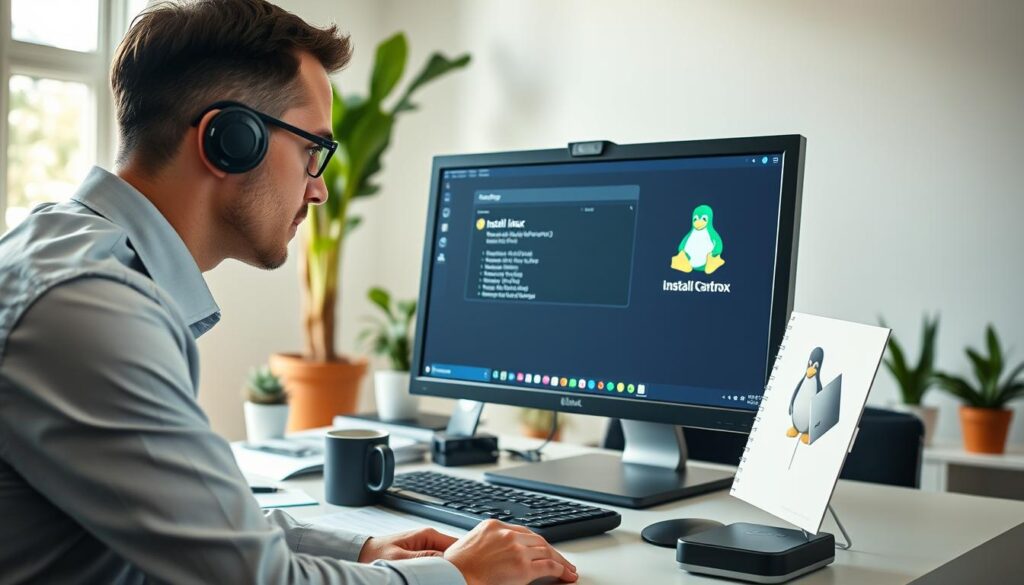
Start the installation as a staged test so your work keeps running while you evaluate a new operating system. Choose a path that matches your risk tolerance: dual-boot for full hardware access, a dedicated box for isolation, or a virtual machine for low-risk evaluation.
Choose the right adoption mode
Dual-boot gives performance but touches your disk and boot flow. A dedicated box keeps risk off your main machine. A VM isolates changes and is easy to snapshot.
Disk encryption and the bootloader
Encrypting disks protects data at rest, but it moves the unlock step into early boot. That makes the bootloader critical: if GRUB stops accepting input from a particular keyboard you can spend minutes on every reboot or face a real problem.
First-hour hardening
After install, apply updates, enable a firewall, drop unnecessary admin rights, and confirm your user has intentional sudo access. Snapshot or image the disk first so you can roll back if something breaks.
- Keep Windows available for critical tasks during the trial.
- Verify recovery media and backups before major changes.
The real-world papercuts you’ll hit using Linux as a daily driver
Everyday work will surface inconvenient edge cases that eat time and focus. Expect small interruptions: boot quirks, permission surprises, update reboots, and odd hardware behavior.
Boot and input: GRUB can ignore certain keyboards (Keychron is a known example). A practical fix is a backup keyboard and a sane GRUB timeout so you can recover without a long pause.
Permissions: a default user may not be in sudo. This is least-privilege design, not a bug, but you must plan admin access so software fixes and system updates don’t become a daily fight.
Updates and reboots: the “no reboots” myth fails when kernels, graphics drivers, or low-level apps change. Plan brief maintenance windows; updates will cost you time.
Display and peripherals: a detected monitor may show a blank screen until you unplug and replug it after boot. Webcams and capture devices can behave differently between apps—Cheese may fail while guvcview or OBS still works.
Software sprawl: apt, Flatpak, Snap, vendor tarballs, and /opt installations fragment your update story and increase surface area. On stable releases you’ll hit version drift and might add third‑party repos—do that only when necessary.
Windows apps & gaming: Wine can run many tools but some are sluggish or need winetricks/.NET surgery. Steam with Proton often works, yet a title can require a specific Proton release—expect a little version roulette.
Office risk & support signals: LibreOffice may break macro-heavy Excel files; always test and keep backups. Use community reports to judge whether an issue is a solvable papercut or a recurring blocker that should send you back to a vendor platform or a separate box for critical work.
Building a productive, secure Linux desktop you can actually live in
Start with a browser-first setup for email, docs, and SaaS, then add only the local tools you need. That way you get fast access to work and limit the number of installed apps that require maintenance.
Your core tool stack
Pick reliable software that has proven Linux support. Spotify, Krita, OBS Studio, and editors like Sublime Text or Sublime Merge get you productive quickly.
For code-adjacent tasks, Python and IDEs such as Eclipse or GNOME Builder are available when you need them without turning your system into a dev box full-time.
Hardware wins that surprise you
Printers, scanners, and Wacom tablets often work out-of-the-box. That reduces setup time compared with chasing proprietary drivers on other platforms.
Update hygiene and attack-surface reduction
You control when updates apply and when to reboot. Prefer official repos, minimize third-party sources, and validate packages. Treat Wine as an isolated option—not a default compatibility layer.
Backup and rollback habits
Make versioned backups and keep a rollback plan. If an update or a file format conversion breaks a document, a recent snapshot saves hours of recovery time.
- Document installed repos and apps.
- Remove abandoned sources to reduce exposure.
- Keep a lightweight VM or a separate box for any tasks that need Windows-only support.
Conclusion
A measured migration gives you the control to shape your system without risking critical work.
You choose an operating system for practical reasons, not dogma. If OS-level features or opaque updates make you uneasy, a linux daily driver can be a way to regain choice and surface control.
Adopt in stages: move web and productivity software first, keep Windows available, and test on a spare laptop, a dedicated box, or a VM. Expect occasional papercuts around packaging, peripherals, and niche apps.
Budget time for fixes, limit third‑party repos, treat Wine cautiously, and keep regular backups. Evaluate community and support; they determine how fast you recover from issues.
Success looks boring: your tools work, updates are predictable, and your workflow runs on your terms. That is the reason to try it.
FAQ
Why does built-in AI at the operating system level make power users uncomfortable?
When AI is woven into core system services, you lose fine-grained control over telemetry, update behavior, and decision-making. That can mean opaque data flows, automatic changes to defaults, and less predictable troubleshooting. You should demand clear opt-outs, audit logs, and minimal data collection to align with your threat model.
How does OS-level AI shift control, telemetry, and trust?
OS-integrated assistants often require cloud access and broad permissions to function. That expands telemetry surface area and increases reliance on vendor trust. You can mitigate this by disabling features you don’t need, using local-only models where available, and monitoring outgoing connections with a local firewall.
What do you gain when your desktop is truly your choice?
Choosing your own stack restores configuration control, predictable update windows, and the ability to pick software vetted by community or vendor. You get predictable performance, clearer privacy properties, and a system you can tailor to work and security needs rather than one optimized for mass-market convenience.
Where does open-source fit when you still rely on Windows or macOS?
Open-source tools and environments can coexist with proprietary systems. Use VMs, containers, or a dedicated machine to offload tasks like development, secure browsing, and research. This hybrid approach reduces risk to your main workstation while giving you the flexibility and transparency of community-driven software.
Can you use a community-grade operating system for everyday tasks without knowing command-line code?
Yes. Many graphical tools cover email, office work, web apps, multimedia, and cloud services. You rarely need a terminal for routine use. Still, learning a few commands for package management and system recovery greatly reduces downtime when things go wrong.
When is "it runs in the browser" not a good enough workaround?
Browser-based apps help for many workflows, but they fall short for high-performance tasks, low-latency audio/video production, specialized hardware, and workflows requiring complex local integrations. Also consider offline availability and local privacy requirements.
Which users should expect friction with a community OS—creative pros, Office-heavy users, or niche toolchains?
Creative professionals using proprietary plugins, Office power users dependent on macros or complex formatting, and engineers with specialized proprietary toolchains are most likely to face friction. Test key files and hardware before you switch, and plan fallback options.
How should you set expectations around stability, convenience, and time-to-fix?
Stable releases favor predictability and long support windows; rolling releases favor newer packages but require more hands-on maintenance. Choose based on how much downtime you can tolerate and whether convenience features or long-term predictability matter more for your work.
Which distributions are best for long-term stability?
Fixed-release, community-backed distributions with conservative update policies offer the most predictable behavior and long-term support. They reduce surprise regressions and make patch planning easier for professional users.
How do Ubuntu, Fedora, Pop!_OS, and Arch differ as tradeoffs?
They balance freshness, stability, and user experience differently. Some prioritize up-to-date drivers and apps, while others prioritize long-term support and predictable maintenance. None are magic fixes—pick what aligns with your need for updates, hardware support, and documentation.
GNOME vs KDE: how do customization and workflow control compare?
One desktop environment emphasizes simplicity and consistency; the other emphasizes customization and granular control. Your choice affects keyboard shortcuts, window management, and how quickly you can optimize a workflow. Try both in a live session before committing.
What hardware realities should you check for your laptop and peripherals?
Verify driver support for Wi‑Fi chips, GPUs, printers, audio interfaces, and input devices. Check community forums and vendor documentation for kernel support and known quirks. Hardware compatibility is often the decisive factor in a smooth transition.
Should you dual-boot, use a dedicated machine, or run a virtual machine to protect your workflow?
Dual-boot offers native performance but carries partition and boot risks. A dedicated machine isolates risk but costs more. Virtual machines are safest for trials and lightweight tasks but may not support high-end GPUs or low-latency I/O. Choose based on risk tolerance and required performance.
Why do disk encryption and bootloader configuration matter?
Full-disk encryption protects data at rest; misconfigured bootloaders can lock you out or break existing systems. Use tested partitioning schemes, understand UEFI vs legacy boot, and keep rescue media handy. Proper setup prevents data loss and maintains security guarantees.
What should you do in the first hour after installation for basic hardening?
Update the system, enable automatic security patches if available, create a non-root admin user, enable firewall defaults, and remove unnecessary services. These steps reduce your attack surface and give you a stable baseline to customize from.
What common boot and input surprises should you expect?
GRUB keyboard detection, odd function-key mappings, and missing firmware for certain Wi‑Fi cards are common. Keep a wired keyboard or a rescue USB ready and consult vendor firmware repositories for missing blobs.
Why might your default user not have admin privileges with sudo?
Some setups create a minimal user without sudo to force explicit privilege separation. Add yourself to the appropriate admin group or enable the root account only after understanding the security implications.
How do updates really behave—do you need to reboot often?
Many app updates are live, but kernel, driver, and firmware updates often require reboots. Some distributions and tools support live kernel patching; otherwise, schedule reboots during low-impact windows to avoid surprises.
How can you fix multi-monitor confusion quickly?
The common quick fix is to replug the monitor and restart the compositor or display manager. For persistent issues, create a saved display profile or use a display configuration tool to set consistent layouts.
How do you manage software installation sprawl across different package formats?
Prefer the distribution’s package manager for core system software, use containerized formats like Flatpak for desktop apps, and limit snaps or third-party tarball installs. Maintain an inventory of installed sources to reduce version conflicts and security risk.
When do third-party repositories help with version drift on stable releases?
Use trusted PPAs or vendor repositories when you need newer versions for security or hardware support. Balance the need for updates against the risk of introducing incompatibilities with stable system libraries.
What works and what breaks when running Windows apps through Wine?
Lightweight legacy applications and many productivity tools work well; complex installers, DRM, and some performance-sensitive apps can be sluggish or fail. Test critical apps and keep a Windows fallback for essential proprietary software.
How reliable is gaming with Steam and Proton?
Many titles run well under Proton, and Steam’s compatibility layer has improved dramatically. Expect occasional title-specific issues, and check ProtonDB for reports. Proprietary anti-cheat systems and some AAA titles may still be problematic.
Why can a disk format affect video playback performance?
Filesystem choice, mount options, and I/O scheduler settings influence throughput and latency. Media playback can stutter on encrypted or heavily fragmented volumes; optimize mount options and use tools tailored for media workloads.
Why might webcam apps fail while other tools still capture video?
Conflicts between drivers, permissions, or different video APIs can cause app-specific failures. Check dmesg for driver errors, verify v4l2 device permissions, and test with multiple apps to isolate the issue.
What are the risks around office suites and complex Excel macros?
Open-source office suites handle most documents, but macro-heavy files and complex formatting may break. Retain the original format, test conversions, and keep a compatible proprietary suite available for critical documents.
How do you judge whether a community issue is “normal” or a blocker?
Check project issue trackers, forum consensus, and whether multiple independent users report the same problem. If the issue lacks a known workaround and prevents essential tasks, treat it as a blocker and plan a fallback.
What core tool stack should you build for productive, secure work?
Start with a secure browser, a reliable code editor or IDE, and vetted creative or productivity apps. Use password managers, endpoint protections, and containerization for risky activities. Favor tools with active security maintenance.
Which peripherals typically work better than expected?
Many printers, scanners, tablets, and common webcams work well thanks to vendor drivers and community drivers. Still, check model-specific compatibility for advanced features like pressure sensitivity or duplex scanning.
How can you keep updates from interrupting your work?
Control update timing with scheduled maintenance windows, use LTS releases for fewer disruptive changes, and selectively apply only security updates when uptime matters. Regular snapshots or backups let you roll back if an update breaks something.
How do you reduce attack surface on your desktop?
Minimize third-party repositories, validate package signatures, limit use of compatibility layers like Wine, and remove unnecessary services. Apply the principle of least privilege to users and applications.
What backup and rollback habits will save you when formats or updates go sideways?
Use automated incremental backups, keep versioned snapshots, and test restores regularly. Keep a bootable rescue image and document recovery steps so you can recover quickly without guessing.